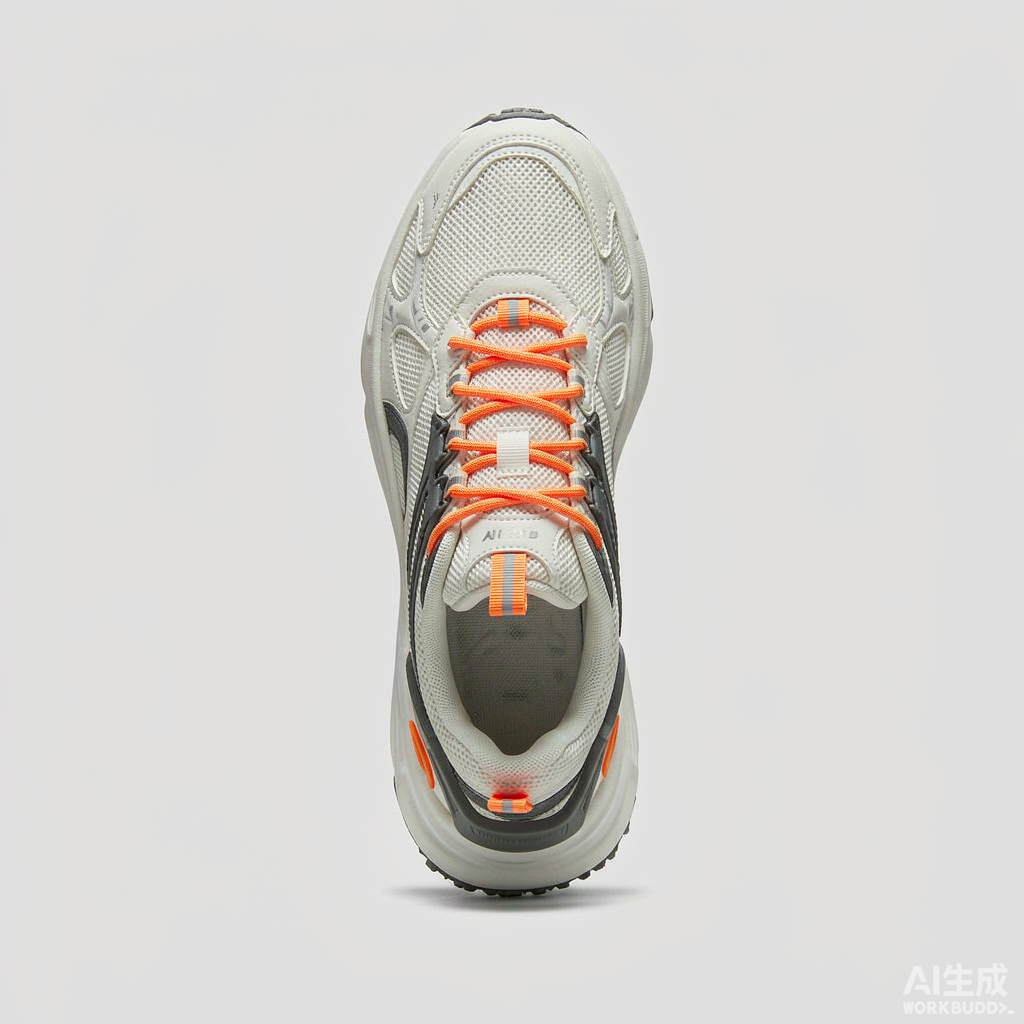
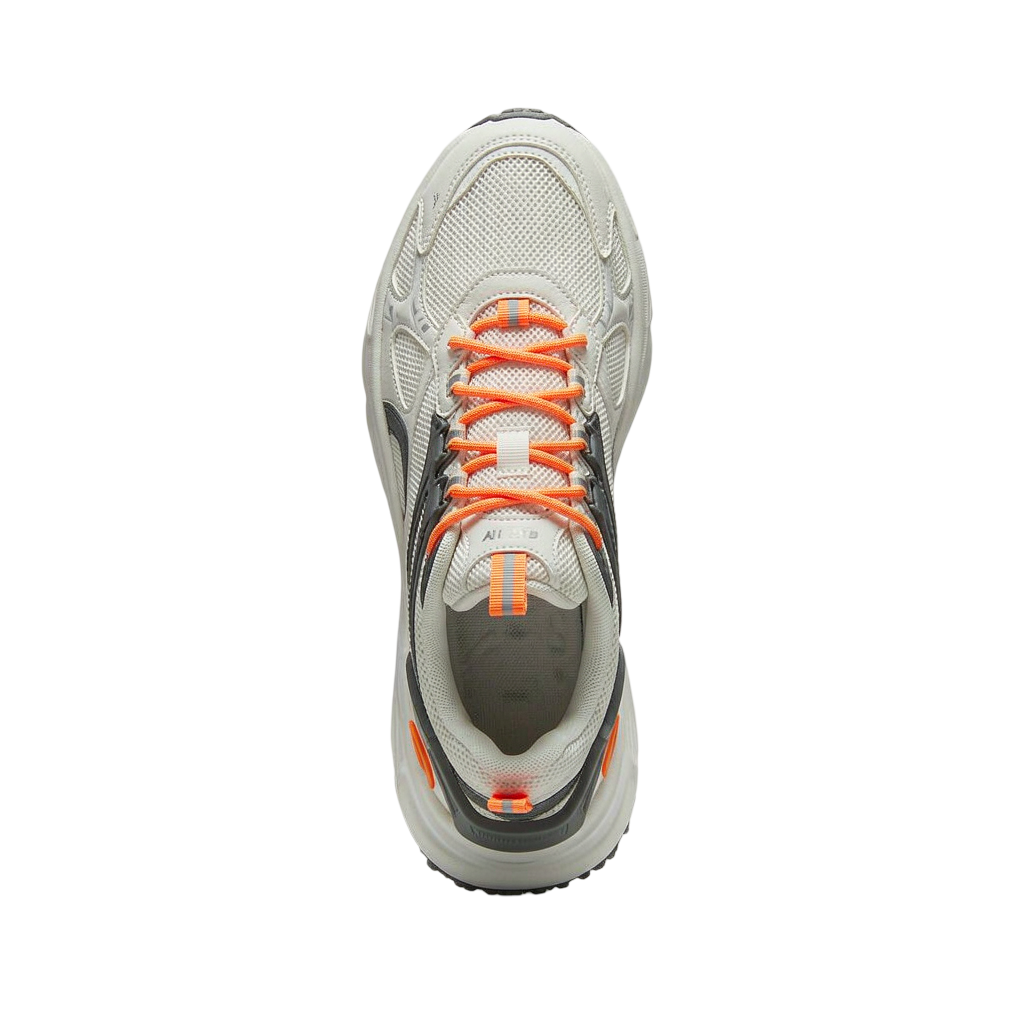
lling on Amazon, eBay, Etsy or Shopify? Every marketplace wants clean product images — usually on a pure white or transparent background. The traditional way is Photoshop's Pen Tool or the Select Subject feature: powerful, but it costs time and a monthly subscription. There's a faster way. In this guide I'll remove the background from a real product photo — the electric kettle below — using a free online tool, in about ten seconds, without installing anything or creating an account.
What you need
- A product photo in JPG, PNG or WebP (up to 10 MB)
- A browser — that's it
No sign-up, no watermark on the result, and uploaded files are automatically and permanently deleted within 7 days.

Step 1 — Upload your photo
Open the Background Remover and drag your photo onto the upload area, or click to browse. I dropped in this kettle shot, straight from my phone — slightly messy background and all.
Step 2 — Click "Remove Background"
Press the Remove Background button. An AI model detects the main subject in your photo and separates it from the background automatically — no manual selection, no clicking around edges. The whole process takes just a few seconds for a normal-sized image.
Notice the tricky parts in my photo: the black power cable loops across the bottom of the frame and the plug sticks out to the side. The AI kept the cord and plug intact instead of cutting them off — that's usually where simpler tools fail.

Step 3 — Download your transparent PNG
When it's done you'll see the cutout rendered over a checkerboard pattern, which means the background is fully transparent. Hit Download PNG and you get a file you can drop onto any background.

3 tips for a cleaner cutout
- Shoot against a plain background when you can. The tool handles cluttered scenes well, but a plain wall or sheet of paper gives the sharpest edges.
- Watch thin objects — cables, straps, steam, glass edges. Good light separation between subject and background helps the AI keep them.
- Use the sharpest photo you have. The output keeps the original resolution, so a crisp input means a crisp cutout.
What to do with a transparent PNG
- Marketplace listings — place it on a pure white canvas to meet Amazon/eBay image requirements
- Shop banners and catalogs — drop the cutout onto any brand background
- Comparison graphics — combine several product cutouts in one image
All of that used to be a Photoshop job. Now it's one click.
FAQ
Is it really free? Yes. Removing backgrounds costs nothing, and the result has no watermark. Sign-up is optional. Will my photo be stored or shared? No. Result files are kept for 7 days so you can re-download them, then automatically and permanently deleted. What formats are supported? JPG, PNG and WebP up to 10 MB. The result is always a PNG with transparency. Does it work with people and animals too? Yes — the model handles people, pets, furniture and irregular shapes, not just boxy products.
Try it now
Ready to clean up your product photos? Remove a background now →