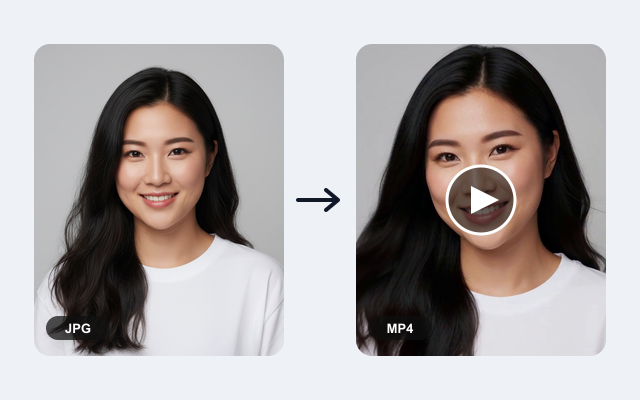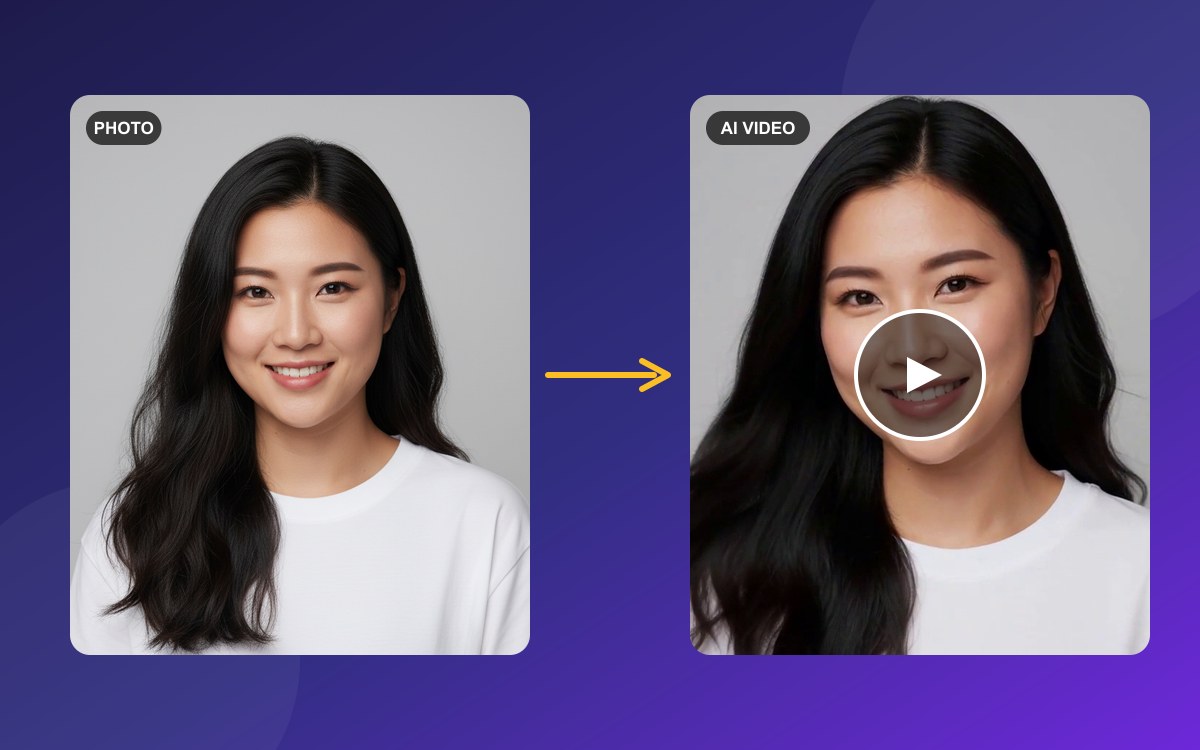
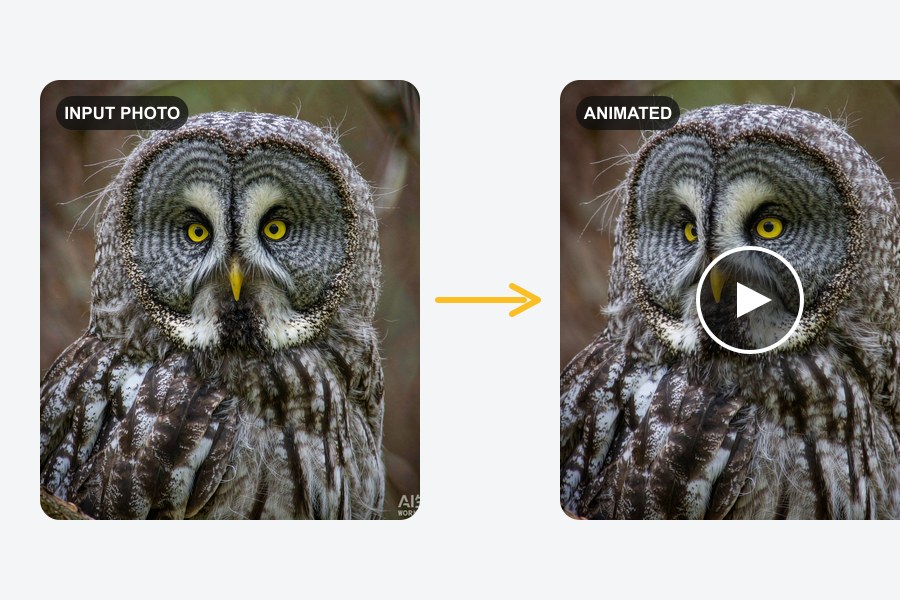
Every photo is a frozen second — the shot you almost missed, the pet that never sits still, the portrait where everything finally clicked. Image-to-video AI takes that single frame and generates the seconds that follow: hair moves in the breeze, an owl turns its head, the camera drifts in like a documentary crew was there all along.
You do not need editing software or a single prompt-writing lesson. In this walkthrough you will turn a still photo into a short MP4 with PixDeep's Image to Video tool — including one setup where the video even comes with its own generated soundtrack.
What image-to-video actually does
Your photo becomes the first frame of the video. An AI video model then invents the motion that logically follows: the subject blinks, fur ruffles, water flows, the camera pushes in. Nothing is pasted on top — the model regenerates every frame while keeping your photo's subject, lighting and style consistent.
Two models are available, and they behave differently:
| Standard | Pro | |
|---|---|---|
| Model | MiniMax H3 | Kling 3.0 |
| Resolution | 768P | Higher detail |
| Soundtrack | Generated automatically | Silent |
| Best for | Portraits, pets, social posts | Product shots, dramatic motion |
The Standard tier is the one that surprises people: because MiniMax H3 generates audio natively, a clip of ocean waves or a windy street comes with matching sound — no music library needed.
What you'll need
- One photo: JPG, PNG or WebP, up to 10MB. Sharp and well-lit works best
- A browser — generation runs on a GPU queue in the cloud, nothing to install
Step 1 — Upload your photo
Drop your image into the workbench. It becomes the first frame exactly as-is, so pick a photo you already like. Here is the one used for this tutorial — a great grey owl:
Step 2 — Describe the motion (a short hint is enough)
The motion box is optional, but one sentence makes a big difference. Keep it simple and physical:
- "The owl slowly turns its head and blinks once, feathers ruffle in a light breeze"
- "Hair moves gently in the wind, she smiles and looks toward the camera"
- "Slow cinematic push-in, steam rises from the coffee cup"
A good formula: what the subject does + what the air/light does + camera move. You do not need keywords like "8K" or "trending" — modern video models ignore them.
Step 3 — Pick a tier and length
Choose 5 or 10 seconds, then Standard or Pro based on where the video will live:
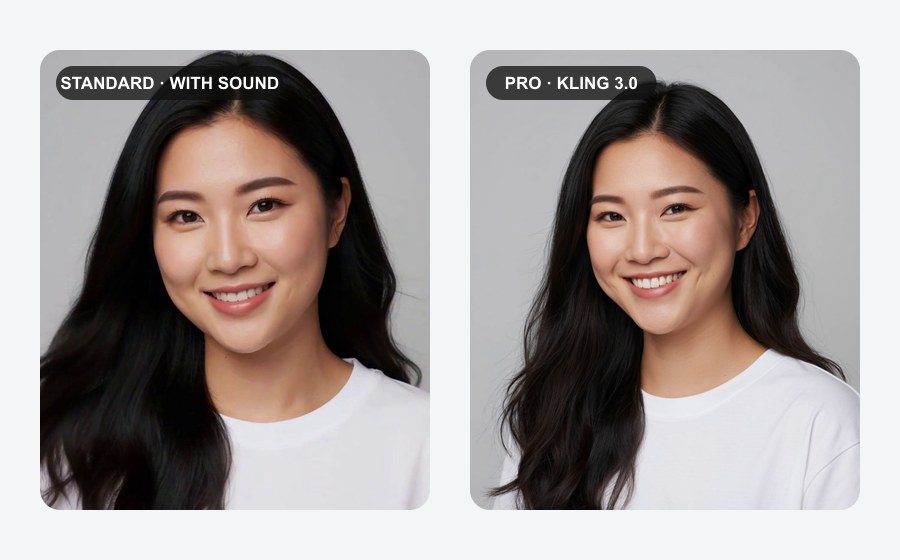
- Standard (from 24 credits) — the everyday choice. Fast (often done in under a minute), 768P, and it generates a soundtrack. Perfect for social posts, family photos and product loops
- Pro (from 66 credits) — Kling 3.0 with the strongest motion quality and prompt control, at higher detail. Choose it when the clip is client-facing or the motion is complex
Step 4 — Generate and download
Click generate. Your job enters a GPU queue and usually finishes within 1–5 minutes — you can keep the tab open and watch the progress. When it is done, download the MP4. It plays anywhere: Instagram, TikTok, WeChat, PowerPoint, your website.
If a generation fails, credits are refunded to your balance automatically — you never pay for a broken render.
Three prompt patterns that work
- The living portrait — "She blinks naturally and smiles, hair moves softly in the breeze, subtle slow push-in." Works on almost any people photo
- The nature moment — "The owl turns its head, feathers ruffle in the wind, shallow depth of field holds the background soft." Animals are where these models shine
- The product loop — "Slow orbit around the bottle, reflections glide across the glass, studio lighting stays constant." Use Pro for clean, controlled motion
What makes a good source photo
- Sharp, well-lit, main subject clearly visible
- Simple backgrounds animate more cleanly than busy ones
- Faces work best front-facing or at a slight angle; extreme profiles give the model less to work with
- Avoid heavy filters — the model preserves your photo's look, flaws included
FAQ
How long can the video be? 5 or 10 seconds per generation. For longer clips, generate two and join them in any editor.
Does the video include sound? The Standard tier generates a matching soundtrack automatically. Pro runs silent by design — many creators add their own music there.
Who owns the result? You do. Use the videos commercially or personally, no watermark.
Why did my job fail? Usually a prompt that tripped the content filter, or a rare provider error. Failed jobs refund their credits automatically.
That is the whole process: one photo, one sentence of motion, a couple of minutes of queue time. Try it on the photo you almost deleted — that is usually the one that moves best. Head to Image to Video and bring it to life.